Introduction
Think about what happens when you send a message to a friend, open a website, watch a video online, or print a document from your laptop using a wireless printer. These activities may seem simple, but they depend on different devices communicating with one another.
That communication is made possible through computer networking.
Computer networks are now widely viewed as an important part of today’s technology . They connect computers, smartphones, servers, printers, and many other devices so they can exchange information and share resources. Without networking, the internet, online banking, video conferencing, cloud computing, and many business applications would not work in the way we know them today.
You do not need to be a network engineer to understand the basics. Learning how networks work can help you troubleshoot internet problems, protect your devices, understand websites, and make better decisions when setting up technology at home or in an office.
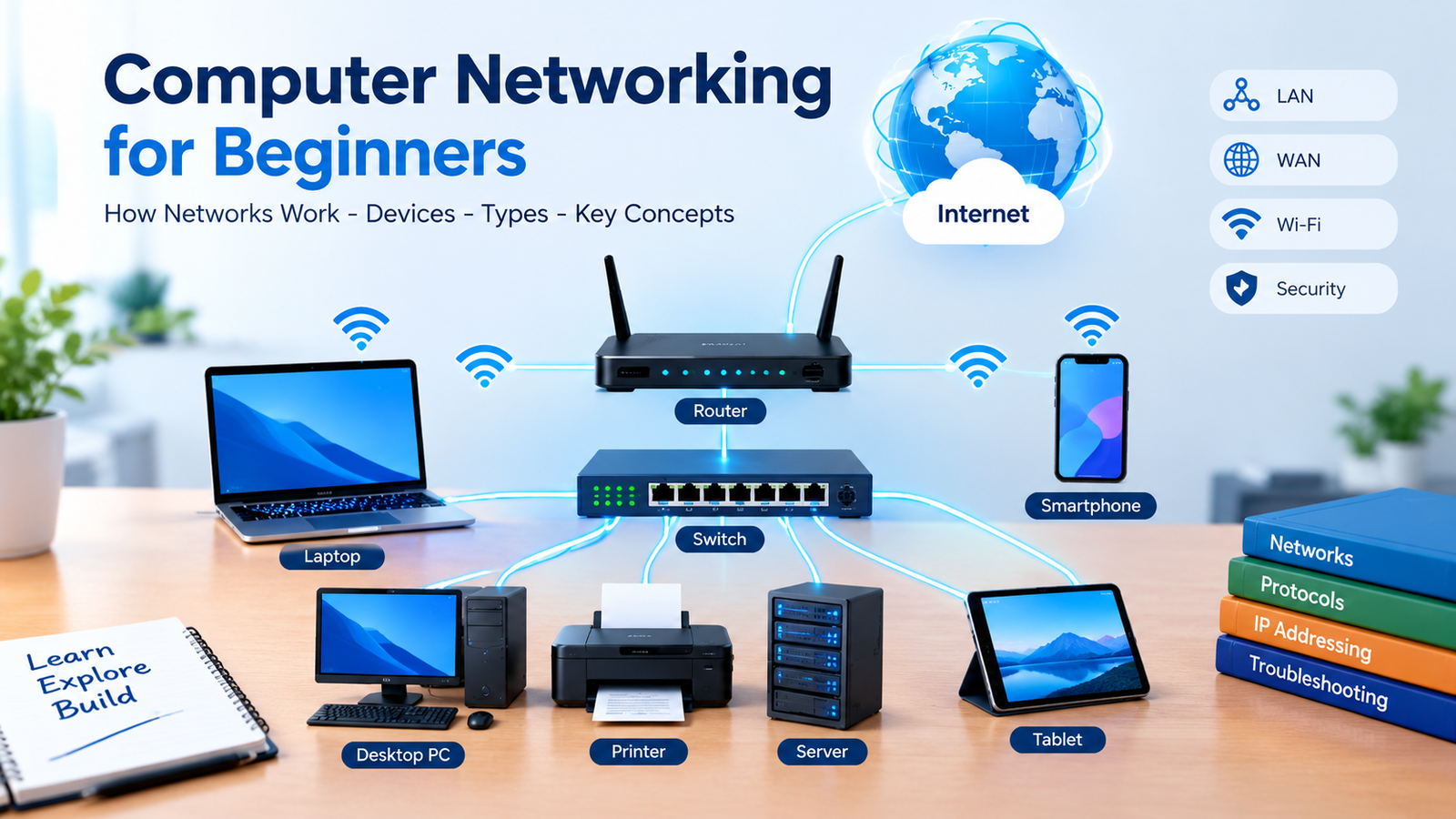
In this guide, you will learn what a computer network is, how devices communicate, what routers and switches do, how IP addresses work, and why network security matters. You will also explore common network types, practical examples, and simple ways to begin learning networking.
What Is a Computer Network?
A computer network could be said to constitute two or more connected devices that are able to communicate with each other.
These devices may include desktop computers, laptops, mobile phones, servers, smart televisions, printers, security cameras, and internet-connected household equipment.
The connection between devices can be wired, wireless, or a combination of both.
For example, imagine a small office with five employees. Each employee has a computer, and everyone needs access to a shared printer and a central collection of business documents.
Instead of connecting every computer separately to every resource, the office can create a network. Authorized employees can then access the printer, exchange files, and use shared services.
A home network works in a similar way. Your smartphone, laptop, television, and other devices may connect through the same router to communicate with local devices or access the internet.
The main purpose of networking is to make communication and resource sharing possible.
Why Are Computer Networks Important?
Networking supports many activities that people depend on every day.
Sharing Information
Networks allow people to send messages, exchange files, access shared documents, and communicate with colleagues.
A business can use a network to make information available to authorized employees without transferring every document manually.
Sharing Resources
Connected devices can share printers, storage systems, applications, and internet connections.
This can reduce the need to purchase separate equipment for every user.
Supporting Remote Communication
Video meetings, online classes, messaging platforms, and remote collaboration tools depend on networks to transfer information between participants.
People can work together even when they are located in different cities or countries.
Accessing Online Services
Websites, cloud applications, streaming platforms, and online banking services rely on communication between users’ devices and remote systems.
Every time you access an online service, networking allows the data to move from one system to the other.
Managing Business Operations
Organizations use networks to connect employees, databases, business applications, payment systems, and other essential services.
A reliable network helps these systems exchange information efficiently and supports everyday operations.
How Does a Computer Network Work?
A network works by allowing devices to send information through connected communication paths.
Although the technical details can become complicated, the basic process is easier to understand through an everyday example.
Suppose you want to open a website on your laptop.
First, your laptop needs a network connection. If you are using Wi-Fi, it communicates wirelessly with your router. If you are connected through an Ethernet cable, the connection uses a wired link.
Next, your device uses networking information and protocols to communicate with the destination. For a website, this may involve translating a domain name into an IP address, establishing a connection, and requesting the page.
The request travels through the relevant network equipment and internet infrastructure until it reaches the destination server.
The server processes the request and sends back the information needed to display the page. Your browser receives the response and presents the website on your screen.
This entire exchange may happen within seconds.
Different components handle different responsibilities. Some help recognize devices, some guide the flow, and others provide useful information. Networking protocols establish rules that allow these components to communicate reliably.
The Main Components of a Computer Network
A network depends on several components working together. Understanding their basic roles makes networking much easier to learn.
1. Network Interface Card
A network interface card, or NIC, allows a device to connect to a network.
Most modern computers already include network interfaces for Wi-Fi, Ethernet, or both. Smartphones and tablets also contain the hardware needed for wireless communication.
Without an appropriate network interface, a device cannot use the corresponding network connection.
2. Router
A router is a device that connects various networks and routes data packets between themA router is a device that connects various networks and routes data packets between them.
In a usual home arrangement, the router joins the local home network with the access to the internet offered by an internet service provider.
Many home routers also include wireless access point functionality, allowing devices to connect through Wi-Fi. Certain individuals merge extra features, like the capability of Ethernet switching and fundamental firewall protection.
A router is not simply a device that makes the internet work. It directs network traffic and helps different networks communicate.
3. Network Switch
A network switch connects devices within a local network, commonly through Ethernet cables.
For example, an office switch can connect several desktop computers, printers, and servers so they can communicate on the same local network.
A switch forwards traffic toward the appropriate device based on information it learns about connected devices.
Unlike a basic hub, a typical Ethernet switch does not simply repeat every received frame to every connected port.
4. Modem or Internet Connection Equipment
A modem or other access device connects a customer’s equipment to an internet service provider’s network.
The exact equipment depends on the connection technology. Cable internet may use a cable modem, while fiber services commonly use an optical network terminal.
Some providers supply a combined modem-router device, while others provide separate equipment.
The important distinction is that the access equipment establishes the connection to the provider, while the router directs traffic between networks.
5. Wireless Access Point
A wireless access point allows Wi-Fi devices to connect to a wired network.
Home routers often include an access point. Larger offices, schools, and public buildings may use several separate access points to provide wireless coverage across multiple rooms or floors.
Access points extend or provide wireless connectivity, but they do not all perform the same functions as routers.
6. Servers
A server is a computer or software system that provides services or resources to other systems.
A web server delivers website content. A file server stores and shares files. An email server handles email-related functions.
Servers can run on physical machines, virtual machines, or cloud infrastructure.
When you open a website, your device acts as a client requesting information, while the relevant server responds to that request.
Understanding Different Types of Computer Networks
Networks are often classified by their size, coverage area, and purpose.
Personal Area Network (PAN)
A personal area network connects devices around an individual.
For example, a smartphone may connect to wireless headphones or a smartwatch through Bluetooth.
These networks usually operate over relatively short distances and are useful for personal devices and accessories.
Local Area Network (LAN)
A local area network connects devices within a limited area, such as a home, office, classroom, or laboratory.
A LAN may use Ethernet cables, Wi-Fi, or both.
For example, a small business might use a LAN to connect computers, printers, file storage, and other office equipment.
Local networks can operate without a direct internet connection, although many are connected to the internet through a router.
Wireless Local Area Network (WLAN)
A wireless local area network is a local network that uses wireless communication, commonly Wi-Fi.
Home Wi-Fi is a familiar example. Devices connect to a wireless access point instead of requiring an Ethernet cable for every connection.
Wireless networking offers convenience, but performance depends on factors such as distance, interference, building materials, device capabilities, and network congestion.
Metropolitan Area Network (MAN)
A metropolitan area network connects resources across a larger urban area or metropolitan region.
It may link multiple buildings, campuses, or organizational locations.
The term is useful for understanding network coverage, although real-world networks do not always fit neatly into a single category.
Wide Area Network (WAN)
A wide area network connects networks across large geographical areas.
Businesses may use WAN technologies to connect offices in different cities or countries.
The internet is the best-known example of a global network built from many interconnected networks, although it is not simply one privately managed WAN.
For beginners, the main difference is the coverage area: a LAN generally serves a local location, while a WAN connects networks across much greater distances.
What Is the Internet?
The internet is a global system of interconnected networks that communicate using standardized protocols.
It connects home networks, businesses, universities, data centers, mobile networks, and many other systems.
People often use the words internet and web as though they mean the same thing, but they are different.
The internet is the underlying network infrastructure. The World Wide Web is a service that operates over the internet and allows people to access linked pages and other resources through web browsers.
Email, online gaming, messaging, and many other services also use the internet without being identical to the web.
This distinction helps explain why internet connectivity can exist even when a particular website is unavailable.
Your device may have a working connection, but the website could be experiencing a problem, the domain name might not resolve correctly, or another part of the communication process may be failing.
What Is an IP Address?
An IP address is a numerical address used to identify an interface on an IP network so information can be delivered to the appropriate destination.
You can think of it as part of the addressing system that allows devices to communicate.
There are two main versions of IP addressing: IPv4 and IPv6.
IPv4
IPv4 addresses are commonly written as four numbers separated by periods.
An example is:
192.168.1.10
Each number ranges from 0 to 255 in the standard dotted-decimal format.
Private IPv4 addresses are frequently used inside home and office networks. A router may assign addresses such as 192.168.1.10 to local devices.
These private addresses are not normally routed directly across the public internet. Routers often use Network Address Translation, or NAT, to allow multiple devices on a private network to share a public IPv4 address.
IPv6
IPv6 was developed partly to address the limited supply of IPv4 addresses.
IPv6 addresses use a much larger address space and are written in hexadecimal groups separated by colons.
An example of an IPv6 address is:
2001:db8::1
This example uses a reserved documentation range rather than identifying a real public service.
IPv6 supports a vastly larger number of possible addresses than IPv4, making it important for the continued growth of internet-connected systems.
Public and Private IP Addresses
A public IP address is used for communication across the public internet.
A private IP address is used within designated private networks, such as home or office networks.
Your laptop may have a private address assigned by the router, while the router uses a public address for internet communication.
The arrangement varies by network and provider, especially when technologies such as carrier-grade NAT are involved.
What Is a MAC Address?
A Media Access Control address, commonly called a MAC address, is an identifier associated with a network interface at the data-link layer.
Ethernet and Wi-Fi interfaces commonly use MAC addresses for communication within the relevant local network.
A MAC address is often written as six pairs of hexadecimal characters, such as:
00:1A:2B:3C:4D:5E
This is an illustrative example.
IP addresses and MAC addresses serve different purposes. IP addressing supports communication across interconnected IP networks, while MAC addressing is used for delivery on a particular local network link.
A router may forward a packet toward a destination network while the local Ethernet or Wi-Fi frame uses a MAC address appropriate for the next link.
It is also important to remember that MAC addresses are not reliable proof of a person’s identity. Devices can use randomized MAC addresses, and network administrators can sometimes change them.
How DNS Makes Websites Easier to Access
Most people remember website names more easily than numerical IP addresses.
For example, entering a domain name is usually easier than memorizing the address of a remote server.
The Domain Name System, or DNS, helps solve this problem by translating domain names into the information needed to locate internet services.
When you enter a website address into a browser, the device may check cached information before asking a DNS resolver for the relevant records.
The resolver can obtain the required information through the DNS system, allowing the browser to continue connecting to the destination.
The process may be completed quickly enough that users rarely notice it.
DNS does not contain the actual website content. Its role is to provide naming information that helps systems find the appropriate destination.
If DNS stops working correctly, a website might fail to load by name even when other parts of the network are functioning.
What Are Network Protocols?
Network protocols are agreed rules that devices follow when exchanging information.
Without shared protocols, equipment made by different manufacturers would struggle to communicate reliably.
Several protocols are particularly important for beginners.
TCP/IP
TCP/IP refers to the family of protocols used for communication across modern IP networks.
IP handles addressing and forwarding packets between networks. TCP provides a reliable, ordered byte stream for applications that need those guarantees.
For example, many web connections use TCP, although modern web protocols can also use QUIC, which runs over UDP.
HTTP and HTTPS
HTTP is a protocol used to transfer web resources between clients and servers.
HTTPS protects HTTP communication using TLS, helping provide confidentiality and integrity and allowing clients to authenticate the server when certificates are correctly validated.
When you visit a website that uses HTTPS, the connection helps protect information from being read or modified by parties who can observe the network traffic.
HTTPS does not automatically make every website trustworthy. A fraudulent website can also use HTTPS, so users should still verify the domain and exercise caution.
DNS
DNS translates domain names into records used by internet services.
It helps users reach services through recognizable names rather than having to remember numerical addresses.
DHCP
Dynamic Host Configuration Protocol, or DHCP, automatically supplies network configuration information to devices.
When a laptop joins a typical home network, a DHCP server on the router may assign it an IP address and provide details such as the default gateway and DNS servers.
This reduces the need to configure every device manually.
UDP
User Datagram Protocol, or UDP, allows applications to send datagrams without the same built-in delivery and ordering guarantees provided by TCP.
Some applications use UDP because they can tolerate occasional packet loss or implement their own recovery mechanisms.
It is used in various networking scenarios, including real-time communication and certain modern transport protocols.
Each protocol has a particular role. Understanding their basic purposes makes it easier to follow explanations of networking problems.
What Is Wi-Fi, and How Does It Work?
Wi-Fi is a family of wireless networking technologies based on IEEE 802.11 standards.
It allows compatible devices to exchange network traffic through radio signals rather than requiring a separate cable for each device.
A wireless router or access point broadcasts a network that nearby devices can discover and join, provided they have the necessary credentials and satisfy the network’s access requirements.
When you connect your laptop to home Wi-Fi, the laptop establishes a wireless connection with the access point. The access point then forwards traffic through the network, allowing the laptop to reach local resources or the internet.
Wi-Fi performance depends on more than the internet package purchased from the provider.
Distance, walls, interference, the number of active devices, router placement, and the capabilities of both the router and the client device can affect performance.
For example, a laptop located far from the router may experience a weaker signal than a phone in the same room as the access point.
Moving the router to a more central, open position can sometimes improve coverage. In larger buildings, additional access points or a suitable mesh system may be necessary.
Wired Networking vs. Wireless Networking
Both wired and wireless connections have advantages.
Ethernet is commonly used for desktop computers, servers, gaming systems, and other devices where a stable connection is valuable.
Wi-Fi is useful for mobile devices and situations where installing cables would be inconvenient.
A wired connection often provides more predictable performance and can reduce interference-related problems. Wireless networking offers greater mobility and easier connection for devices that move around.
However, neither option is always faster in every situation. The result depends on the Ethernet link speed, Wi-Fi standard, equipment quality, interference, network congestion, and internet service.
Many home and business networks use both. Desktop computers and access points may connect through Ethernet, while phones and laptops use Wi-Fi.
Choosing the right connection means considering the needs of the device rather than assuming one technology is universally better.
What Is Bandwidth, and What Is Latency?
Bandwidth and latency are two important measurements that help explain network performance.
Bandwidth
Bandwidth describes the capacity of a connection to transfer data over a period of time.
It is commonly measured in bits per second, such as megabits per second (Mbps) or gigabits per second (Gbps).
A connection with higher available bandwidth can generally transfer more data per second, assuming other conditions are suitable.
This matters when downloading large files, streaming high-quality video, or supporting many users at once.
However, the speed advertised by an internet provider does not guarantee that every application will always receive that speed. Network congestion, server limitations, Wi-Fi conditions, and other factors can affect actual performance.
Latency
Latency measures the time it takes for information to travel between points in a network. It is often discussed as the round-trip time for a request and response.
Latency is commonly measured in milliseconds.
Low latency is particularly important for video calls, online gaming, remote desktop sessions, and other interactive applications.
A connection can have high bandwidth but still feel slow during interactive tasks if latency is high or unstable.
For example, downloading a large file may work well on a high-bandwidth connection, while an online game may feel unresponsive because of delays or packet loss.
Understanding both measurements gives you a more complete picture of network quality.
How Network Security Works
A network connects devices and allows information to move between them. That same connectivity can create opportunities for unauthorized access if the network is not properly protected.
Network security includes the technologies, rules, and practices used to protect systems and information.
Firewalls
A firewall applies rules to network traffic to allow, block, or otherwise control communications.
Home routers often include basic firewall capabilities. Businesses may use more advanced firewall systems to protect networks, inspect traffic, and enforce access policies.
A firewall is an important security layer, but it cannot prevent every attack.
Strong Wi-Fi Security
Home and business Wi-Fi networks should use modern security settings supported by their equipment.
WPA2-AES and WPA3 are common security options, with WPA3 providing newer protections where compatible devices support it.
Use a strong, unique Wi-Fi password and change default administrative credentials on network equipment.
Avoid relying on hidden network names or MAC filtering as your primary security measures. These approaches do not replace strong authentication and properly configured encryption.
Network Segmentation
Network segmentation separates a network into different sections so that devices and systems do not all have unrestricted access to one another.
For example, an office may place guest Wi-Fi users on a separate network from internal business computers.
Smart home devices can also be isolated from sensitive computers when the router supports appropriate network separation.
Segmentation can limit the spread of certain problems, but it must be configured correctly to provide the intended protection.
Software Updates
Routers, access points, switches, operating systems, and other network equipment may contain security vulnerabilities.
Installing appropriate firmware and software updates helps address known problems and improves system reliability.
Devices that are no longer supported by their manufacturers may require replacement if important security updates are unavailable.
Monitoring and Access Control
Organizations may monitor network activity to identify unusual behavior and investigate potential security incidents.
They should also limit access according to each user’s responsibilities.
For example, employees who only need to use a shared printer should not automatically receive administrative access to the entire network.
Strong authentication, limited permissions, monitoring, and regular maintenance work together to improve security.
Common Computer Networking Problems
Network issues can be frustrating, especially when you do not know where to begin.
Fortunately, a few basic checks can help identify many common problems.
The Device Cannot Connect to Wi-Fi
First, check whether Wi-Fi is enabled and whether the device is attempting to join the correct network.
Confirm that the password is correct and that the device is within reasonable range of the access point.
If other devices connect successfully, the problem may be specific to the affected device. If no devices can connect, the router or wireless network may need attention.
Restarting equipment can sometimes help, but it should not replace investigating repeated or persistent failures.
Wi-Fi Works but the Internet Does Not
A device may be connected to the router without having a working internet connection.
Check whether other devices have the same problem. If all devices are affected, the issue could involve the router, access equipment, or internet service provider.
If only one device is affected, examine its network configuration and connection status.
A connection icon alone does not prove that the internet is working correctly.
Websites Fail to Load
If some websites work while others do not, the problem may involve DNS, the destination service, browser settings, or another part of the connection.
Try checking the website from another device or network.
Avoid changing advanced DNS or security settings without understanding the consequences, particularly on business devices managed by an IT team.
The Network Is Slow
Begin by checking whether the problem affects one device or the entire network.
A speed test can provide useful information, but results vary depending on the test server, connection method, time of day, and other conditions.
If possible, compare a wired connection with Wi-Fi. A wired test can help determine whether wireless conditions contribute to the problem.
Also consider background downloads, cloud synchronization, streaming activity, and the number of devices using the network.
A Printer or Shared Device Is Unavailable
Confirm that the printer or other device is powered on and connected to the expected network.
Check whether the computer and shared device are on compatible network segments and whether the relevant permissions are configured correctly.
Some devices can connect to a guest network that prevents communication with other local devices. Network isolation may therefore explain why internet access works while local printing does not.
Troubleshooting becomes easier when you test one possibility at a time and record the results.
How to Start Learning Computer Networking
You do not need expensive equipment to understand networking fundamentals.
A gradual learning plan can help you move from everyday concepts to more technical skills.
Step 1: Understand Basic Terminology
Begin with terms such as IP address, router, switch, DNS, DHCP, gateway, bandwidth, and latency.
Learn what each term means and how the components work together.
Avoid memorizing definitions without understanding their purpose. Practical examples make networking concepts easier to remember.
Step 2: Explore Your Home Network
Look at the devices connected to your home router.
Identify which devices use Wi-Fi and which use Ethernet. If your router provides an authorized device list, examine it to understand how connected devices are displayed.
Do not attempt to access networks or devices that you do not own or have permission to manage.
Step 3: Check Your Device’s Network Settings
On a computer, inspect its network settings to learn how it obtains an IP address and identifies its default gateway.
You can also observe whether the device uses IPv4, IPv6, or both.
The exact steps vary by operating system. Avoid changing unfamiliar settings until you understand their purpose.
Step 4: Learn Basic Command-Line Tools
Networking professionals often use command-line tools to investigate connectivity and name-resolution problems.
Useful examples include:
pingto test basic reachability where the destination permits responses.tracerton Windows ortracerouteon many other systems to examine the path traffic may take.ipconfigon Windows to inspect network configuration.ip addron Linux to view interface addresses.nslookupto query DNS information.
These tools have limitations. A failed ping does not always mean a system is unavailable, because some networks block the relevant traffic. Similarly, a route trace may not show every intermediate device.
Use them to develop an understanding of network behavior rather than treating each result as a complete diagnosis.
Step 5: Practice in a Safe Environment
A network simulator or virtual lab can help you learn without changing a live business network.
You can practice assigning addresses, configuring simple networks, and observing how devices communicate.
If you use real equipment, begin with a small setup and document the original settings before making changes.
Step 6: Learn Networking Security
Study password protection, secure Wi-Fi configuration, firewalls, access control, network segmentation, and software updates.
These concepts are valuable for personal technology use and for anyone interested in an IT career.
Security knowledge should develop alongside networking skills because connectivity and protection are closely related.
Step 7: Build a Small Project
Once you understand the basics, try creating a simple home lab or simulated office network.
For example, you could connect two computers through a local network, test connectivity, and observe how addressing and shared resources work.
A small project helps you connect theoretical concepts with real behavior and gives you useful material to discuss when applying for entry-level technical roles.
Career Opportunities in Networking
Computer networking supports several career paths in information technology.
A network support technician helps users resolve connectivity problems and maintain basic network equipment.
A network administrator manages network devices, user access, performance, and routine maintenance.
A network engineer designs, configures, and troubleshoots more complex network environments.
Other related careers include wireless networking, network security, cloud networking, infrastructure engineering, and network automation.
The skills required depend on the position. Entry-level support roles may emphasize troubleshooting and basic configuration, while advanced engineering roles can require substantial experience with routing, switching, security, automation, and network design.
Certifications can provide structured learning and demonstrate familiarity with particular technologies. However, practical experience and the ability to explain how a network works are also important.
If you are a beginner, start with fundamentals, use simulations or a small lab, and gradually work toward more advanced topics.
The Future of Computer Networking
Computer networking continues to develop as more devices, applications, and services depend on reliable communication.
Faster wireless technologies, expanded fiber infrastructure, IPv6 adoption, cloud computing, and more sophisticated network management are influencing how networks are designed and operated.
Organizations are also using automation to monitor systems, apply configuration changes, and identify potential performance or security problems.
Artificial intelligence may assist network teams by analyzing large amounts of operational data and highlighting unusual patterns. However, automated recommendations still require appropriate validation and oversight.
The growth of connected devices also creates new security challenges. Smart home equipment, industrial sensors, and other internet-connected systems must be managed carefully to reduce unnecessary exposure.
Future networks will need to balance performance, cost, reliability, and security. New technology can improve capability, but good design and responsible management will remain essential.
Conclusion
Computer networking is the foundation of communication between modern digital devices. It allows computers to share information, connect to online services, access shared resources, and support applications used in homes, schools, and businesses.
Understanding routers, switches, IP addresses, DNS, protocols, Wi-Fi, and network security provides a useful starting point for anyone interested in technology.
You do not need to learn every technical detail at once. Begin by understanding your own network, explore basic diagnostic tools, and practice with small projects in a safe environment.
As your knowledge grows, you can move toward more advanced subjects such as routing, switching, cloud networking, and network security.
The most important step is to remain curious and approach problems systematically. Once you understand how devices communicate, many everyday technology issues become easier to investigate, and the wider digital world becomes much less mysterious.
Leave a Reply