Introduction
Every time you open a laptop, use a smartphone, or start a computer, an important piece of software helps everything work together. It enables the user to open apps, save documents, be connected to the web, and work with their gadget. This software is called an operating system.
Most people use an operating system every day without thinking about how much work it performs in the background. Whether you are browsing a website, watching a video, editing a document, or playing a game, the operating system helps coordinate the hardware and software required to complete the task.
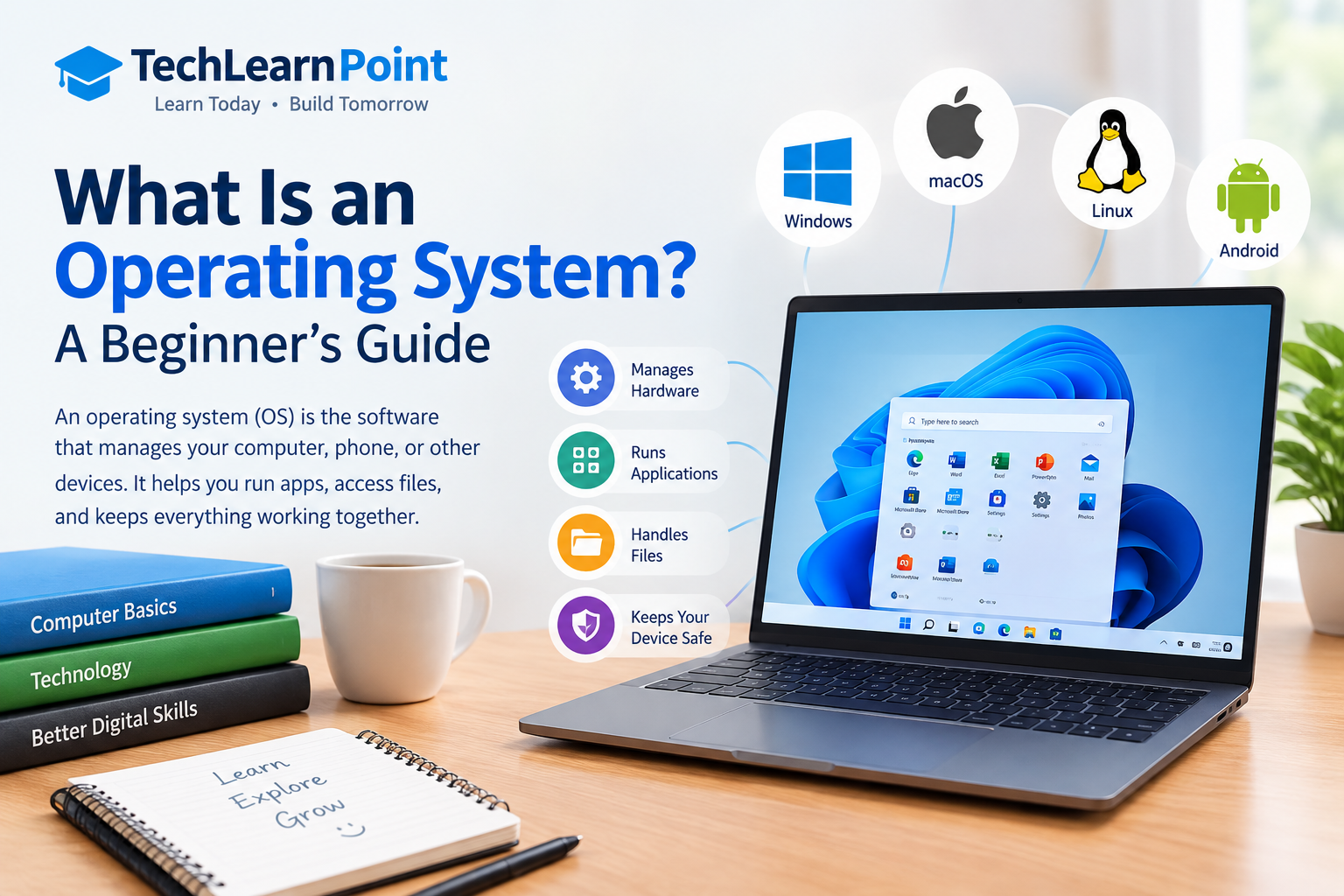
Popular examples include Microsoft Windows, macOS, Linux, Android, and Apple’s iOS. Although these systems have different designs and features, they share a common purpose: making computing devices usable and managing their resources.
Understanding operating systems is an important step for anyone interested in computers and technology. It can help you understand how applications run, why system updates matter, and how different devices perform their tasks.
In this beginner-friendly guide, you will learn what an operating system is, how it works, its main functions, the different types available, and how to choose the right operating system for your needs.
What Is an Operating System?
An operating system, commonly called an OS, is system software that manages a computer’s hardware and provides services that applications use to perform tasks.
A computer contains several physical components, including a processor, memory, storage, and input and output devices. Applications need a way to use these components without managing every hardware detail themselves.
The operating system helps coordinate these activities.
For example, when you open a photo-editing application, the operating system helps load the program into memory, schedule the processor time it needs, display its interface, and provide access to files.
Without an operating system, using a modern computer for everyday tasks would be much more complicated.
An OS also provides an environment where users can interact with the device. Depending on the system, this may include a graphical desktop, icons, windows, menus, or a command-line interface.
Different operating systems are aimed to serve different purposes. Desktop computers can work with Windows and Linux . while a smartphone may use Android or iOS. Servers often run Linux or Windows Server, depending on their requirements.
How Does an Operating System Work?
An operating system works between applications and the computer’s hardware. It manages requests, allocates resources, and coordinates the activities needed to complete tasks.
Several important processes make this possible.
1. The System Starts Up
When you switch on a computer, its firmware begins the startup process. The firmware performs initial hardware checks and helps locate the software needed to start the operating system.
The operating system’s core components are then loaded into memory.
After startup, system services and other components begin running. Once the process is complete, the user can sign in and start using applications.
The exact startup sequence varies between devices and operating systems.
2. The Operating System Manages Hardware
Applications need access to hardware such as keyboards, displays, storage devices, and network adapters.
The operating system coordinates much of this communication through device drivers and other system components.
For example, when you type a message, the operating system receives keyboard input and makes it available to the application you are using.
When you save a document, it helps coordinate the operation that stores the file on the appropriate device.
3. Applications Request System Resources
Applications do not normally control every hardware component directly. Instead, they request services from the operating system.
An application might request memory, access a file, display information, or communicate over a network.
The operating system manages these requests according to its rules and security permissions.
This arrangement helps multiple applications work on the same device without each one having to manage the entire computer independently.
4. The System Shares Resources
Several applications may be active at the same time.
For example, you might listen to music, browse the internet, and edit a document simultaneously.
The operating system helps schedule processor time, allocate memory, and manage other resources so that these applications can operate together.
If an application stops responding, the operating system may also provide tools for closing it without restarting the entire computer.
5. The User Interacts With the Device
The operating system provides ways to control the computer and access its features.
On a desktop, you might use a mouse, keyboard, windows, and menus. On a smartphone, you may use a touchscreen and gestures.
Some systems also support voice commands, accessibility features, and command-line tools.
These interfaces make it easier for users to work with applications and manage their devices.
Main Functions of an Operating System
An operating system performs several important functions behind the scenes.
Process Management
A process is a running instance of a program.
When you open a web browser, for example, the operating system creates or manages the processes needed to run it.
Process management involves scheduling tasks, allocating resources, and coordinating how programs execute.
Modern operating systems can manage many processes at once, allowing users to switch between applications and perform different activities.
Memory Management
Applications require memory to store information while they run.
The operating system manages the allocation and release of memory so that different programs can operate without unnecessarily interfering with one another.
It also uses techniques such as virtual memory to help manage situations where programs require more memory than can be held in physical RAM at a given moment.
However, virtual memory does not make a computer equivalent to one with additional physical RAM. Heavy reliance on storage for memory operations can reduce performance.
File Management
An operating system helps users create, organise, open, copy, move, and delete files.
It manages directories or folders and works with file systems that determine how information is organised on storage devices.
For example, when you save a document in a folder, the operating system helps store it and retrieve it later.
File permissions also help control who can access or modify particular information.
Device Management
Computers use a wide range of devices, including printers, keyboards, cameras, displays, and external drives.
The operating system coordinates access to these devices through appropriate system components and drivers.
If a printer is not working, the problem might involve the printer itself, its connection, the driver, or the operating system’s configuration.
Understanding this relationship can help users troubleshoot common computer problems.
Security and User Permissions
Operating systems include features designed to protect files, applications, and system resources.
These may include user accounts, passwords, access permissions, encryption features, security updates, and application restrictions.
For example, an operating system may ask for administrator approval before allowing software to make certain system-level changes.
Security features differ across platforms, and their effectiveness also depends on correct configuration and responsible use.
User Interface Management
The user interface allows people to interact with their devices.
A graphical user interface may include windows, icons, menus, buttons, and a taskbar or dock.
Some operating systems also provide a command-line interface, where users enter commands to perform tasks.
Both approaches can be useful. Graphical interfaces are often convenient for everyday activities, while command-line tools can be efficient for administration and automation.
Networking
Modern operating systems support communication over local networks and the internet.
They help applications connect to websites, communicate with servers, share resources, and use network services.
For example, when you open a website, the operating system supports the network operations required by your browser.
Networking capabilities also allow devices to connect to printers, file servers, and other systems when the necessary permissions and configuration are in place.
Different Types of Operating Systems
Operating systems can be grouped according to the devices they support and the tasks they are designed to perform.
1. Desktop Operating Systems
Desktop operating systems are designed for personal computers and laptops.
They typically provide graphical interfaces, file management, application support, and tools for connecting to external devices.
Microsoft Windows and macOS are widely used examples. Desktop Linux distributions are another option.
These systems are commonly used for education, office work, software development, entertainment, and creative projects.
2. Mobile Operating Systems
Mobile operating systems are designed primarily for smartphones and tablets.
They support touchscreen interaction, mobile applications, wireless communication, cameras, sensors, and power-management features.
Android and Apple’s iOS are well-known examples.
Mobile operating systems also manage application permissions and provide security mechanisms intended to protect user information.
3. Server Operating Systems
Server operating systems are designed to support services used by other computers or applications.
They may manage websites, databases, shared files, authentication systems, and business applications.
Linux distributions and Windows Server are common examples.
Server systems often prioritise reliability, remote administration, access control, and the ability to support multiple users or services.
4. Embedded Operating Systems
Embedded operating systems are used in devices designed for specific purposes.
Examples may include industrial controllers, networking equipment, smart appliances, and certain automotive systems.
Unlike a general-purpose desktop computer, an embedded device may have limited memory and processing power. Its operating system is selected according to the device’s requirements.
Some embedded systems use a real-time operating system when tasks must be completed within defined timing constraints.
5. Real-Time Operating Systems
A real-time operating system, or RTOS, is designed to provide predictable responses within specified timing requirements.
These systems are used in applications where missing a deadline can affect the correct operation of the equipment.
Examples include some industrial control systems, robotics, and specialised medical or automotive devices.
Real-time computing is not simply about making a computer run quickly. It is about ensuring that required tasks can be completed within appropriate time limits.
6. Network Operating Systems
Network-related operating system services help computers communicate and share resources across a network.
Depending on the context, the term network operating system may refer to systems or services designed to manage shared files, users, printers, and network resources.
Many modern server operating systems provide these capabilities through built-in services and additional software.
Popular Operating Systems Explained
Different operating systems offer different features, interfaces, and software compatibility.
Microsoft Windows
Windows is a widely used operating system for personal computers.
It supports a broad range of hardware and software, including office applications, games, creative tools, and business programs.
Many users choose Windows because of its software compatibility and the large selection of available computers.
Its interface includes features such as a desktop, taskbar, Start menu, and File Explorer, although details vary between versions.
Like other operating systems, Windows requires updates and appropriate security settings to remain protected.
macOS
macOS is Apple’s desktop operating system for Mac computers.
It provides an interface designed to work with Apple’s hardware and supports applications for productivity, software development, communication, and creative work.
Users who already own Apple devices may appreciate the integration between supported products and services.
However, application availability, hardware cost, and compatibility requirements should be considered when choosing a computer.
Linux
Linux is commonly used to refer to operating systems built around the Linux kernel, often combined with other open-source software in distributions.
Examples include Ubuntu, Fedora, and Debian.
Linux distributions are used on personal computers, servers, development systems, and many embedded devices.
Some are designed to be beginner-friendly, while others are aimed at experienced users or specialised tasks.
Linux is popular among developers and system administrators because it offers flexible configuration and powerful command-line tools.
Android
Android is a mobile operating system used by many smartphone and tablet manufacturers.
It supports touchscreen applications, notifications, mobile connectivity, and a wide variety of device configurations.
Because Android is used across many manufacturers, available features, update schedules, and interface designs can differ between devices.
Users should install updates provided for their particular device and download applications from trustworthy sources.
Apple’s iOS
iOS is Apple’s mobile operating system for the iPhone.
It provides a controlled software environment, application management, security features, and integration with Apple’s services.
Its interface and supported features are designed around Apple’s hardware and software ecosystem.
As with other platforms, users should review application permissions and keep their devices updated.
What Is the Difference Between an Operating System and Application Software?
An operating system and an application serve different purposes.
The operating system manages the device and provides services that other software can use. Application software helps users perform specific tasks.
For example, Windows is an operating system, while Microsoft Word is an application used to create documents.
Similarly, Android is an operating system, while a photo-editing app is application software.
A browser, music player, spreadsheet program, and video editor are all examples of applications that rely on operating system services.
The distinction is important because applications normally do not replace the operating system. They operate within the environment it provides.
What Happens When an Operating System Crashes?
An operating system crash occurs when a serious system problem prevents normal operation.
The cause can vary. Possible reasons include faulty drivers, hardware problems, corrupted system files, software conflicts, overheating, or memory-related issues.
Some crashes affect only one application, while others cause the entire device to restart or stop responding.
When a computer experiences repeated crashes, users should note any error messages and consider whether the problem began after a recent update or hardware change.
Keeping backups of important files is essential because certain failures can result in data loss.
Troubleshooting may involve installing updates, checking hardware, removing incompatible software, or using the operating system’s recovery tools.
If the problem continues, professional assistance may be necessary.
Why Are Operating System Updates Important?
Operating system updates can introduce new features, improve compatibility, fix bugs, and address security vulnerabilities.
When a security weakness is discovered, a vendor may release an update designed to reduce the risk of exploitation.
Ignoring updates for extended periods can leave a device exposed to known problems.
However, updates should be installed carefully, particularly on business-critical computers. Organisations may test updates before deploying them across large numbers of devices.
Before performing a major system upgrade, it is sensible to back up important files and check whether essential applications and hardware are compatible.
Users should also be aware of the support status of their operating system. When a version reaches the end of its support period, it may no longer receive regular security fixes from its manufacturer.
How to Choose the Right Operating System
Choosing an operating system depends on how you plan to use your device.
Consider Your Main Tasks
If you mainly browse the web, write documents, and attend online classes, several operating systems may meet your needs.
If you use specialised business software, professional creative tools, or particular games, check compatibility before choosing.
Check Hardware Compatibility
Not every operating system supports every computer equally well.
Before installing a new system, confirm that your processor, memory, storage, graphics hardware, and other devices meet the requirements.
Drivers and manufacturer support can also affect performance.
Think About Ease of Use
A familiar interface can make everyday tasks easier.
Some users prefer the flexibility of Linux, while others prefer the application compatibility of Windows or the integrated experience offered by macOS.
The best choice is the one that suits your requirements and comfort level.
Review Security and Support
Check how the operating system receives updates and how long the version will remain supported.
Consider available security tools, account protections, application permissions, and backup options.
No operating system is automatically safe in every situation. Good security habits remain important regardless of the platform.
Consider the Total Cost
The cost of using an operating system may include hardware, software licences, support, upgrades, and training.
Some operating systems and distributions are available without a separate licence fee, while others are tied to specific hardware or licensing arrangements.
Consider the overall cost rather than looking only at the initial purchase price.
How Beginners Can Learn Operating System Basics
Learning about operating systems does not require advanced computer knowledge.
You can begin with tasks you already perform on your computer.
Step 1: Explore system settings. Learn where to find display settings, installed applications, storage information, user accounts, and update options.
Step 2: Practise file management. Create folders, organise documents, search for files, and understand file extensions.
Step 3: Learn about processes. Use the built-in task or process manager to see which applications are running and how they use system resources.
Step 4: Understand users and permissions. Learn the difference between a standard user account and an administrator account.
Step 5: Explore basic networking. Understand how your operating system connects to Wi-Fi and how applications access network services.
Step 6: Learn simple command-line tasks. If you feel comfortable, practise basic commands using trustworthy tutorials for your operating system.
Step 7: Experiment safely. If you want to try Linux or another operating system, consider using a virtual machine or an unused computer rather than immediately replacing the system on your main device.
Always back up important files before making major system changes.
Frequently Asked Questions
What is an operating system in simple words?
An operating system is the main system software that manages computer hardware and provides the services applications need to run.
What are five examples of operating systems?
Five examples are Microsoft Windows, macOS, Linux distributions, Android, and Apple’s iOS.
Can a computer work without an operating system?
A computer can perform certain tasks using firmware or specialised software without a conventional operating system. However, most modern personal computers rely on an operating system for everyday activities such as running applications and managing files.
Is Linux an operating system?
Linux technically refers to the kernel, which manages important parts of the system. Linux-based operating systems combine the kernel with other software and are commonly distributed as systems such as Ubuntu, Fedora, and Debian.
What is the difference between RAM and an operating system?
RAM is physical memory used to hold information that the computer needs while operating. An operating system is software that manages resources, including RAM, and coordinates the execution of applications.
Why does an operating system need updates?
Updates can fix security weaknesses, resolve software problems, improve compatibility, and introduce features.
Which operating system is best for beginners?
There is no single best option for everyone. Windows and macOS offer familiar desktop environments for many users, while beginner-friendly Linux distributions provide another option. The best choice depends on hardware, software requirements, and personal preference.
Can I install two operating systems on one computer?
Yes. A computer can be configured to run two operating systems through dual booting or, in suitable circumstances, virtual machines. Both methods require careful planning and sufficient system resources.
Conclusion
An operating system is one of the most important parts of a modern computing device. It manages hardware, coordinates applications, organises files, controls access to resources, and provides the interface people use every day.
Different operating systems are designed for different needs. Windows and macOS are common desktop choices, Linux is widely used across servers and personal computers, and Android and iOS power many mobile devices.
Understanding how operating systems work can make you more confident when using technology and help you troubleshoot common problems.
Start by exploring the settings and tools on your own device. Learn how files, applications, memory, and user permissions work together. As your knowledge grows, you can explore more advanced subjects such as Linux administration, system security, and computer networking.
A basic understanding of operating systems provides a strong foundation for anyone who wants to learn more about computers and technology.
Leave a Reply